We Were Here Tomorrow Demo Crashing: Fixes to Try Now
We Were Here Tomorrow demo crashing? Try DirectX 11, disable overlays, verify game files, and work through GPU fixes to get back to your co-op session.
Jump to
How to Fix We Were Here Tomorrow Demo Crashing
We Were Here Tomorrow demo crashing can end your puzzle session before you and your partner even get started. Because this adventure requires two players, a crash on either PC interrupts the teamwork that keeps you moving. Start troubleshooting We Were Here Tomorrow demo crashing by disabling overlays, testing DirectX 11, turning off VSync, and verifying the demo’s game files.
Work through those changes individually and relaunch between tests. Keep track of whether the game closes at startup, during a cutscene, or while you’re playing. That gives you a useful comparison when you return to the same point after changing a setting.
| What happens | Troubleshooting action |
|---|---|
| The demo closes during startup | Test DirectX 11 and disable overlays |
| Crashes happen during cutscenes or gameplay | Turn off VSync and check GPU drivers |
| Crashes continue after a driver update | Try a clean GPU driver installation |
| You’re playing on a laptop | Make sure the dedicated GPU runs the game |
| The application stays open, but communication fails | Check network restrictions separately |
Before making deeper changes, restart your computer and unplug unnecessary USB devices. Keep the microphone you need for co-op connected, and close software that adds overlays or interacts with the game.
Have your partner troubleshoot their PC if their application is the one closing. Compare what happens on each machine instead of changing both setups simultaneously; that makes it easier to identify which adjustment helped.
Official page: We Were Here Tomorrow (store.steampowered.com)
Test DirectX 11, Disable Overlays, and Verify Files
These checks target the graphics API, interfering software, and the installation itself. They’re useful starting points for We Were Here Tomorrow demo crashing because they let you test specific changes before moving into driver reinstalls.
 Image: Steam / Total Mayhem Games
Switch from DirectX 12 to DirectX 11
The game launches with DirectX 12 by default. Test DirectX 11 through the launch selection window if that option appears.
Otherwise, add the launch argument through Steam:
- Right-click the demo in your Steam library.
- Open Properties.
- Select General and find Launch Options.
- Enter
-force-d3d11. - Launch the demo again and test the point where it previously crashed.
Remove the argument if it doesn’t help. Avoid collecting launch commands from unrelated games; keep this test focused on the DirectX change.
The full game’s PC requirements specify DirectX 12, while the crash troubleshooting instructions include DirectX 11 as an alternative to test. Use that alternative to check stability rather than assuming it guarantees a fix.
Turn off overlays completely
Disable overlays from Discord and Steam, and close MSI Afterburner before launching. These programs can interfere with Unity.
Keep the overlay disabled throughout your test. If you change several programs at once and the crash disappears, reintroduce them individually to narrow down the conflict.
For voice communication, remember that the game is built around working microphones and walkie-talkies. Don’t let an overlay test leave either player without the microphone needed to cooperate.
Disable VSync
Turn off VSync in both the game settings and your GPU control panel. Check both places so you aren’t leaving a separate driver setting enabled.
If the demo crashes before you can reach its settings, the configuration location identified for this adjustment is:
C:\SteamLibrary\steamapps\common\We Were Here Tomorrow Demo\We Were Here Tomorrow_Data\StreamingAssets
Use your actual Steam library location if the installation is elsewhere. Back up the configuration file before editing, and change only the VSync setting you can identify.
Verify the installation
Run Steam’s file integrity verification for the demo. If you’re troubleshooting an Epic installation, use its file verification option.
After verification finishes, relaunch and repeat your earlier test. Running the game as administrator is another troubleshooting option; test it separately so you can tell whether it changes the outcome.
Check Your GPU, Drivers, and Hardware
If We Were Here Tomorrow demo crashing continues after the launch and installation checks, turn to the graphics hardware and its configuration.
 Image: Steam / Total Mayhem Games
A dedicated GPU matters here. On a laptop, check that the game uses the dedicated graphics processor rather than integrated graphics, especially when the laptop is unplugged.
Compare your PC with the full game’s requirements
The following specifications apply to the full Windows game. Keep that distinction in mind when checking a demo installation.
| Component | Minimum | Recommended |
|---|---|---|
| Operating system | Windows 11, 64-bit | Windows 11, 64-bit |
| Processor | AMD Ryzen 5 3600 or equivalent | AMD Ryzen 5 5600X or equivalent |
| Memory | 8 GB RAM | 16 GB RAM |
| Graphics | Nvidia GTX 1660Ti 6 GB or equivalent | Nvidia GeForce RTX 3060 or equivalent |
| DirectX | Version 12 | Version 12 |
| Available storage | 25 GB | 25 GB |
| Connection and microphone | Broadband internet and a working PC-compatible microphone | Broadband internet and a working PC-compatible microphone |
Meeting those specifications doesn’t replace troubleshooting. Still, checking the operating system, graphics card, and memory gives you a concrete hardware baseline before you spend time changing software settings.
Update drivers, then try a clean installation
Install the current graphics driver for your GPU from NVIDIA, AMD, or Intel.
If a regular update doesn’t resolve the crashes, perform a clean installation using the installer’s clean-install option where available. This is a separate step from updating over an existing driver installation.
DDU is an alternative when a clean-install option isn’t available. Follow its instructions carefully rather than combining several driver removal methods.
Restart afterward, then test the demo before restoring optional graphics tweaks.
Restore default GPU settings
Return an overclocked GPU to its default settings and reset custom GPU control panel changes. Test with those defaults before adding performance adjustments back.
For We Were Here Tomorrow demo crashing during gameplay, this keeps driver settings and overclocking out of the next comparison. Pair it with a check that the correct GPU is selected, particularly on a laptop with both integrated and dedicated graphics.
Clear Shader Caches and Repair Windows
Recurring crashes can also involve corrupted shader caches or Windows system files. Move to these checks after testing overlays, DirectX, installation integrity, and drivers.
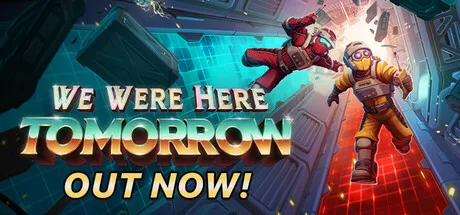 Image: Steam / Total Mayhem Games
Clear the relevant shader cache
Close the game before clearing cache folders. Match the locations to the graphics hardware installed in your PC.
| Cache group | Locations included in crash troubleshooting |
|---|---|
| AMD | %LOCALAPPDATA%\AMD\DxCache, %LOCALAPPDATA%\AMD\DxcCache, %LOCALAPPDATA%\AMD\VkCache, %LOCALAPPDATA%\AMD\GLCache, %LOCALAPPDATA%\AMD\DX9Cache |
| Intel | %LOCALAPPDATA%\Intel\ShaderCache |
| NVIDIA | %LOCALAPPDATA%\NVIDIA\DXCache |
| Windows Direct3D | %LOCALAPPDATA%\D3DSCache |
| Steam | %ProgramFiles(x86)%\Steam\steamapps\shadercache |
These are cache locations. Keep your cleanup confined to those folders rather than deleting neighboring installation or personal data.
Check the Steam shader cache location before clearing it. Leave a missing folder alone instead of creating one or searching for unrelated substitutes.
After clearing the relevant cache, restart the PC and repeat your crash test.
Install Windows updates and check the clock
Install available operating system updates. Windows updates can address components involved in DirectX and game stability.
Also check that your system time matches your time zone. Include this simple check before moving on to system repair, especially if the clock is visibly incorrect.
Check Windows system files
If We Were Here Tomorrow demo crashing persists, open Command Prompt as administrator and run these commands separately:
sfc /scannowDISM /Online /Cleanup-Image /RestoreHealth
Let each command finish before entering the next one. Restart your computer afterward.
Keep any error messages from these checks. If a repair fails, that error is useful troubleshooting information; repeatedly launching the demo won’t explain why Windows couldn’t complete the repair.
Separate Crashes from Connection Problems and Puzzle Blocks
The Norček facility is built around separated players, different perspectives, and coordinated interactions. Before restarting a session, identify whether the application has actually crashed or whether your next action depends on your partner.
| Situation | What to check |
|---|---|
| The application closes | Continue crash troubleshooting on that PC |
| The game remains open, but voice communication fails | Check microphone operation and network restrictions |
| An interaction won’t activate | Look for an access requirement or a partner-controlled action |
| A puzzle attempt produces a failure sound | Recheck the instructions and sequence together |
Public campus or library networks can block the game’s voice servers. If communication is the problem, test on a private network rather than treating every interruption as a graphics crash.
Likewise, an unavailable interaction can be part of a puzzle. Key cards gate access, some actions require cooperation, and information visible to your partner can explain what you need to do. Describe both sides before assuming a closed door means the session is broken.
When We Were Here Tomorrow demo crashing survives the troubleshooting steps, collect a concise report for Total Mayhem Games:
- Identify whether you’re running the demo or the full game.
- Record whether the crash happens at launch, in a cutscene, or during gameplay.
- Include your GPU, driver version, and Windows version.
- List the changes you tested and their results.
- Preserve any error message exactly as it appears.
Use the developer’s support channels and check its known-issues information. Keep your report focused on the repeatable failure so the next troubleshooting step addresses the problem you’re actually experiencing.
FAQ
What should I try for We Were Here Tomorrow demo crashing at startup?
Disable overlays, test DirectX 11 with -force-d3d11, turn off VSync, and verify the demo’s files. Relaunch between changes so you can identify which adjustment helps.
Can I use DirectX 11 instead of DirectX 12?
Yes. The game starts with DirectX 12, but DirectX 11 is a troubleshooting option through the launch selector or Steam launch options. Remove the argument if it doesn’t improve stability.
What should laptop players check?
Make sure the dedicated GPU runs the game rather than integrated graphics. Also update the graphics driver and restore default GPU settings before testing again.
Why can’t I interact with something if the game is still running?
Check access requirements and your partner’s side of the puzzle. Some interactions depend on key cards or coordinated actions. If the problem is missing voice communication, check the microphone and network connection separately.
Continue with
 We Were Here Tomorrow Demo: Access and Co-Op GuideLooking for the We Were Here Tomorrow demo? Check Steam for access, prepare your co-op setup, and learn what to expect from the full puzzle adventure.
Useful pages
We Were Here Tomorrow Achievements: Full List & Tips
Track all 37 We Were Here Tomorrow achievements with Steam unlock rates, practical co-op puzzle tips, and a focused checklist for your completion run.
We Were Here Tomorrow Release Date: Launch Details
We Were Here Tomorrow release date was October 20, 2026. Check launch pricing, crossplay, PC requirements, and co-op essentials before playing together.
We Were Here Tomorrow Patch Notes: 1.1.2 Fixes Explained
We Were Here Tomorrow patch notes cover update 1.1.2, including softlock fixes, voice chat repairs, faster shaders, and chapter changes. See what changed.
We Were Here Tomorrow Controls: PC and Console Guide
Learn We Were Here Tomorrow controls for PC and controllers, including radio use, Hook Gun basics, Goop Gun basics, remapping, and smoother co-op play.
Join the community
Official channels for news, updates and player help: